Add Paperform leads to HubSpot and send a follow-up email
Add each Paperform lead to HubSpot as a contact, then send them a follow-up email from your own Gmail account. A Stepper template you can import and edit.
Last checked
What it does
When someone fills in your inquiry or quote form, the lead belongs in HubSpot and the person expects to hear back from you.
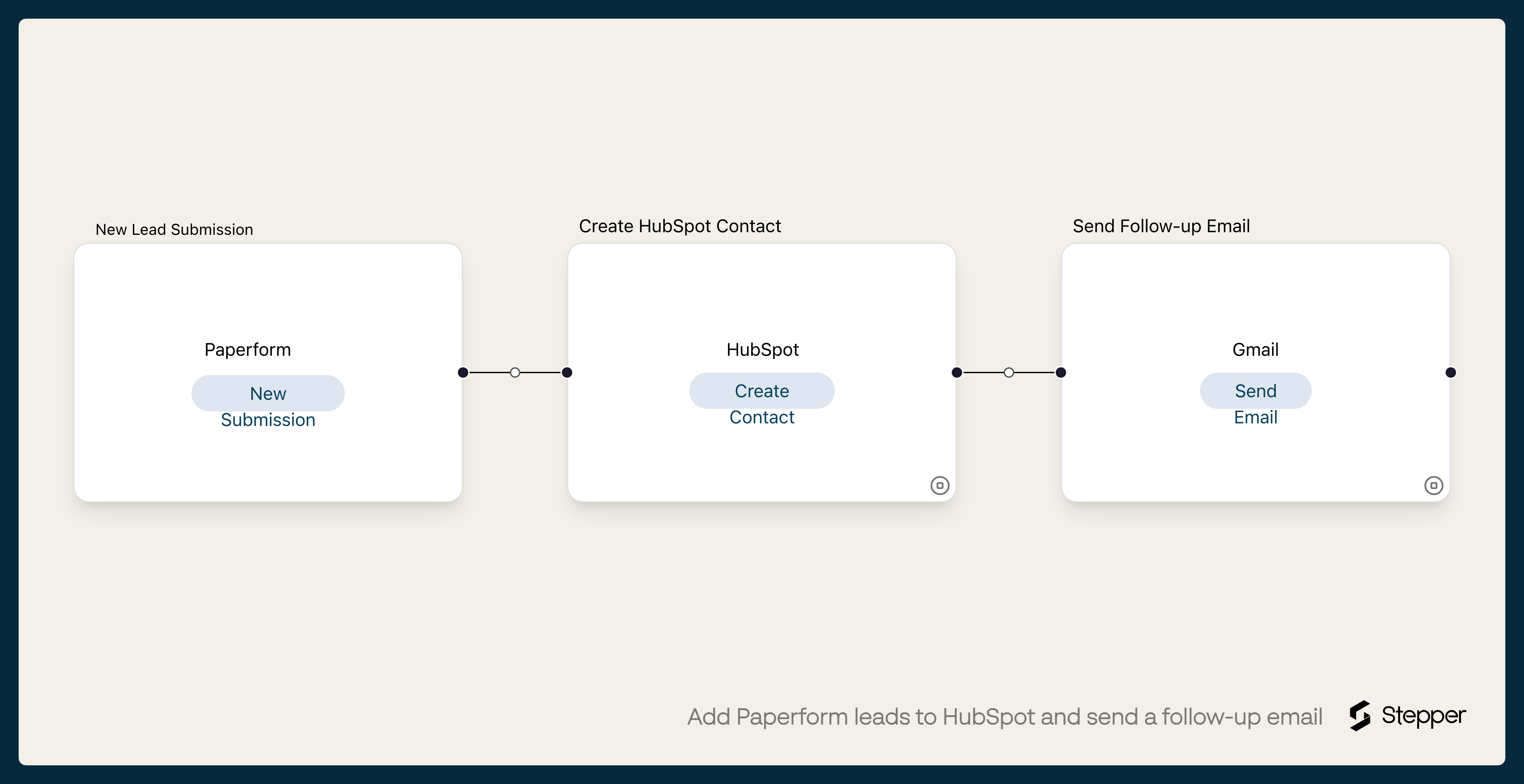
For each new submission, this workflow creates a HubSpot contact with the person's email, first name, last name and company. Then it emails them from your Gmail account with the subject "Thanks for getting in touch" followed by their first name, and a short note saying the team will reply. It repeats only their first name, not their message, so keep the First name question short. The email comes from your own inbox, so replies come straight back to you.
If HubSpot already has a contact with that email address, it rejects the new one and keeps the existing contact unchanged. The workflow carries on, so the follow-up email is still sent.
The steps
-
Paperform: New Submission
Starts the workflow when the Paperform form you choose gets a new submission.
-
HubSpot: Create Contact
Creates a HubSpot contact with the email, first name, last name and company from the submission. If the email is already in HubSpot, the existing contact stays as it is and the workflow moves on.
-
Gmail: Send Email
Emails the person from your Gmail account, thanking them by first name and saying the team will reply.
What you need connected
You also need a Stepper account. Each app's page lists every trigger and action Stepper has for it.
How to set it up
- Sign in to Stepper with your Paperform account. Every Paperform plan includes unlimited workflows, within fair use.
- Click Use this template in Stepper. Stepper copies the workflow into your account and asks you to connect Paperform, HubSpot and Gmail if you haven’t already. The Gmail account you connect is the one the follow-up is sent from.
- In the Paperform trigger, choose your form. The template uses questions with the keys
email,firstName,lastName, andcompany. If yours have other keys, pick your own answers with the data picker. - Read the email in the Gmail step and rewrite it in your own words. The template says someone will reply within one business day, so change that if it isn’t true for you.
- Submit your form with your own email address and run a test. Check the contact in HubSpot and the email in your inbox, then click Publish.
What you can change
- Repeat leads. Out of the box, a repeat lead’s existing contact isn’t changed. To update it with the new answers, add Find Contact before Create Contact, then an Update Contact step that runs when there’s a match, as the Google Forms to HubSpot template does.
- The email. Write a different email for each answer to a question like “What are you interested in?” by adding a Gmail step for each, with a condition on each rule.
- A deal. Add HubSpot’s Create Deal after the contact step for leads that mean a sales conversation.