Send Typeform responses to a Slack channel
Post each new Typeform response to a Slack channel with the Name, Email, Company and Message answers and submitted time. Typeform has a Slack integration too.
Last checked
What it does
Some Typeform responses need someone to act on them: a demo request, a support issue, a job application. Unless you've set up notifications, those responses wait in Typeform until someone checks, while the people who'd act on them are talking in Slack.
This workflow posts a message to the channel you choose for each new response. It's set up for a contact form with questions titled Name, Email, Company and Message: the message is headed "New Typeform response", lists those four answers on their own lines and ends with the time it was submitted. If your questions are titled differently, you re-pick the answers with the data picker, and you can change the words around them.
It's one trigger and one action, so it's a starting point. Add a sheet, a CRM contact or an AI summary after the Slack step when you need them.
The steps
-
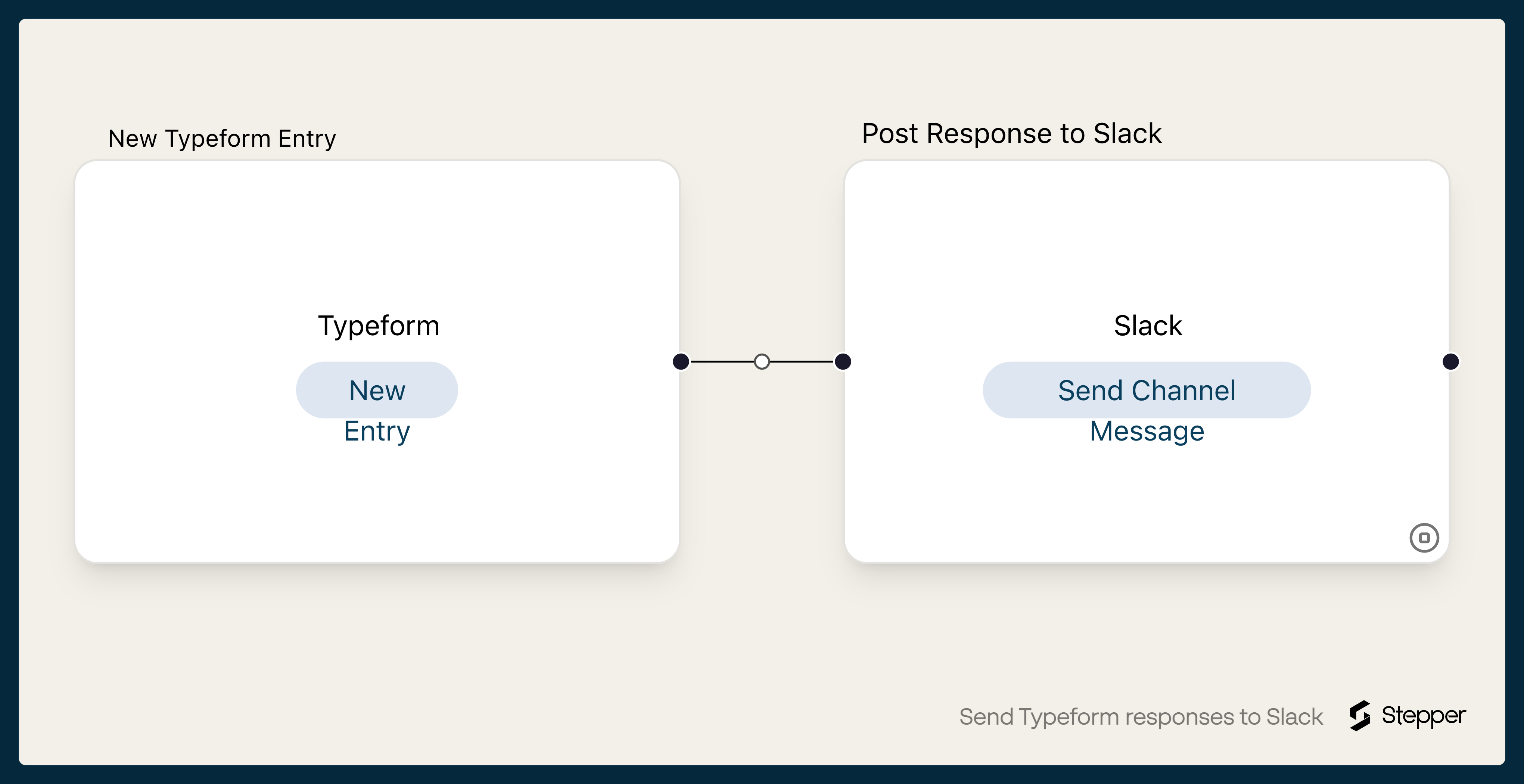
Typeform: New Entry
Starts the workflow when someone submits the typeform you choose.
-
Slack: Send Channel Message
Posts "New Typeform response" to the channel you choose from the Stepper Bot, with the Name, Email, Company and Message answers and the submitted time.
What you need connected
You also need a Stepper account. Each app's page lists every trigger and action Stepper has for it.
How to set it up
- Sign in to Stepper, or create a free account.
- Click Use this template in Stepper. Stepper copies the workflow into your account and asks you to connect Typeform and Slack if you haven’t already.
- In the Typeform trigger, choose your form. Stepper can show your typeform’s questions only once your account is connected.
- In the Slack step, choose the channel.
- Check the message. It uses answers to questions titled Name, Email, Company and Message. If your questions are titled differently, delete those answers and pick your own from the Typeform step with the data picker. Put the answer people scan for first at the top.
- Submit a test response and run a test. When the Slack message reads well, click Publish.
What you can change
- Who gets it. Use Slack’s Send Direct Message action to send it to one person, such as the account owner for that region.
- Which responses are posted. Put a condition on the rule before the Slack step, for example budgets over a set amount.
- A summary for long answers. Add an AI step before Slack that turns a long free-text answer into two lines.