Send Typeform responses to a Notion database
Add each new Typeform response to a Notion database as an item, with answers mapped to properties. Typeform's own Notion integration is worth checking first.
Last checked
What it does
Typeform collects the answers, and Notion is often where the team works through them: job applications, customer feedback, content pitches, onboarding questionnaires. Getting each response across usually means someone copying answers into the database by hand, one property at a time.
This workflow creates a Notion database item for each new response. It's set up for a contact form with questions titled Name, Email, Company and Message: the name becomes the item's title, and the email, company, message and submitted time each fill their own property. If your questions are titled differently, you re-pick the answers with the data picker.
Because it runs in Stepper, you can add steps on either side of the Notion step, such as an AI step that summarizes a long answer before it goes in, or a Slack message with a link to the new item.
The steps
-
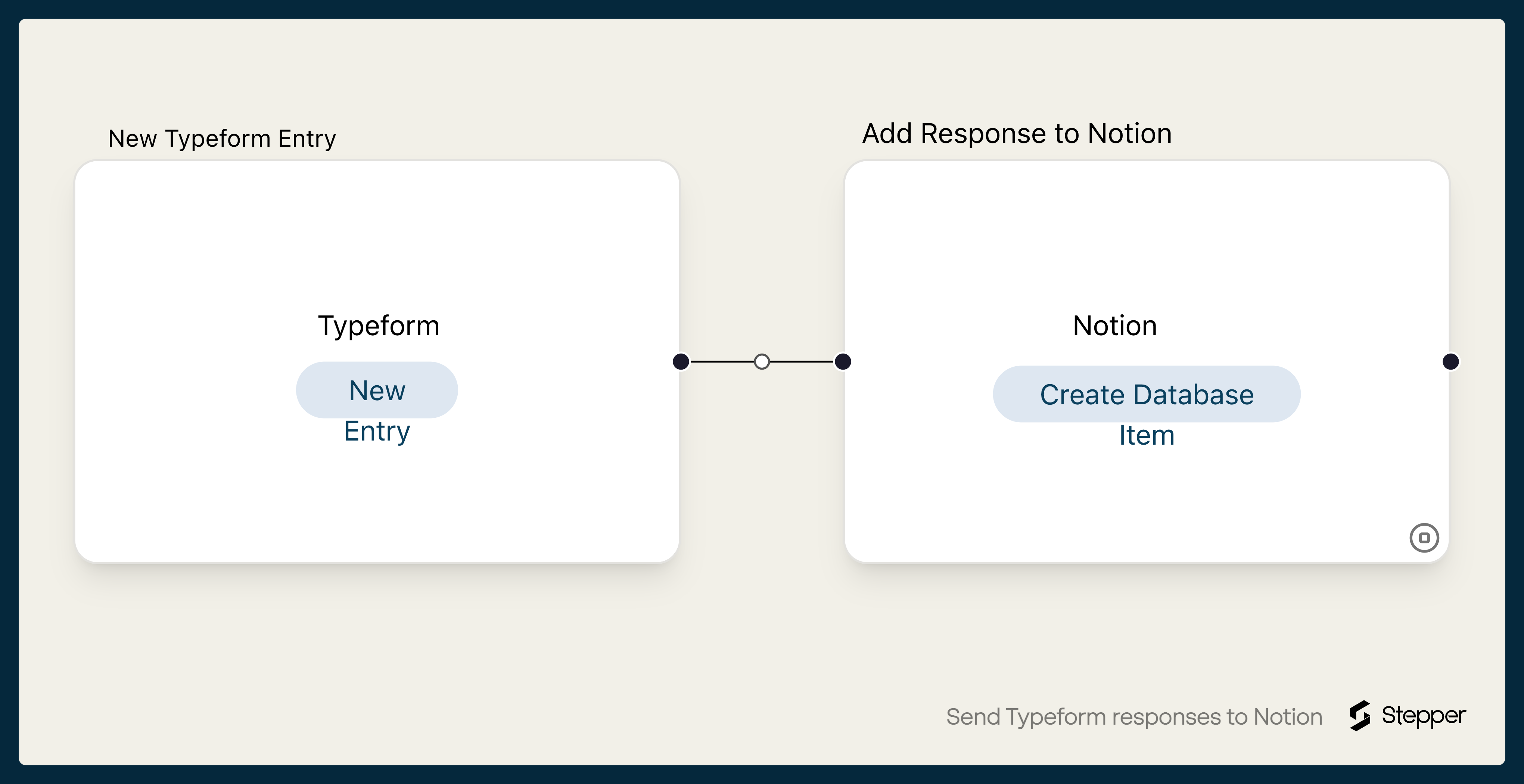
Typeform: New Entry
Starts the workflow when someone submits the typeform you choose.
-
Notion: Create Database Item
Adds an item to your Notion database with Name, Email, Company, Message and Submitted filled in from the response.
What you need connected
You also need a Stepper account. Each app's page lists every trigger and action Stepper has for it.
How to set it up
- Sign in to Stepper, or create a free account.
- Set up a Notion database with these properties:
Name(the title),Email(email),Company(text),Message(text) andSubmitted(date). - Click Use this template in Stepper. Stepper copies the workflow into your account and asks you to connect Typeform and Notion if you haven’t already. When Notion asks which pages Stepper can access, include the page that holds your database.
- In the Typeform trigger, choose your form. Stepper can show your typeform’s questions only once your account is connected.
- In the Notion step, choose the database and check each property has the right answer. If your questions are titled differently, pick your own answers from the Typeform step with the data picker.
- Submit a test response and run a test. When the item looks right, click Publish.
What you can change
- A status for new items. Set a fixed Status or Stage value, such as “To review”, so new responses sort into the right view.
- A summary. Add an AI step before Notion that writes a one-line summary of a long answer into its own property.
- Updates in place of duplicates. Swap Create Database Item for Notion’s Create or Update Database Item if the same person may submit more than once.