Send Typeform responses to Google Sheets and Slack
Send each Typeform response to a Google Sheets row and alert a Slack channel in one Stepper workflow. Typeform's own Sheets integration covers the sheet alone.
Last checked
What it does
Typeform's Google Sheets integration puts each response in a sheet. If the same response also needs to reach the person who follows up, or a CRM, that's a separate setup for each one.
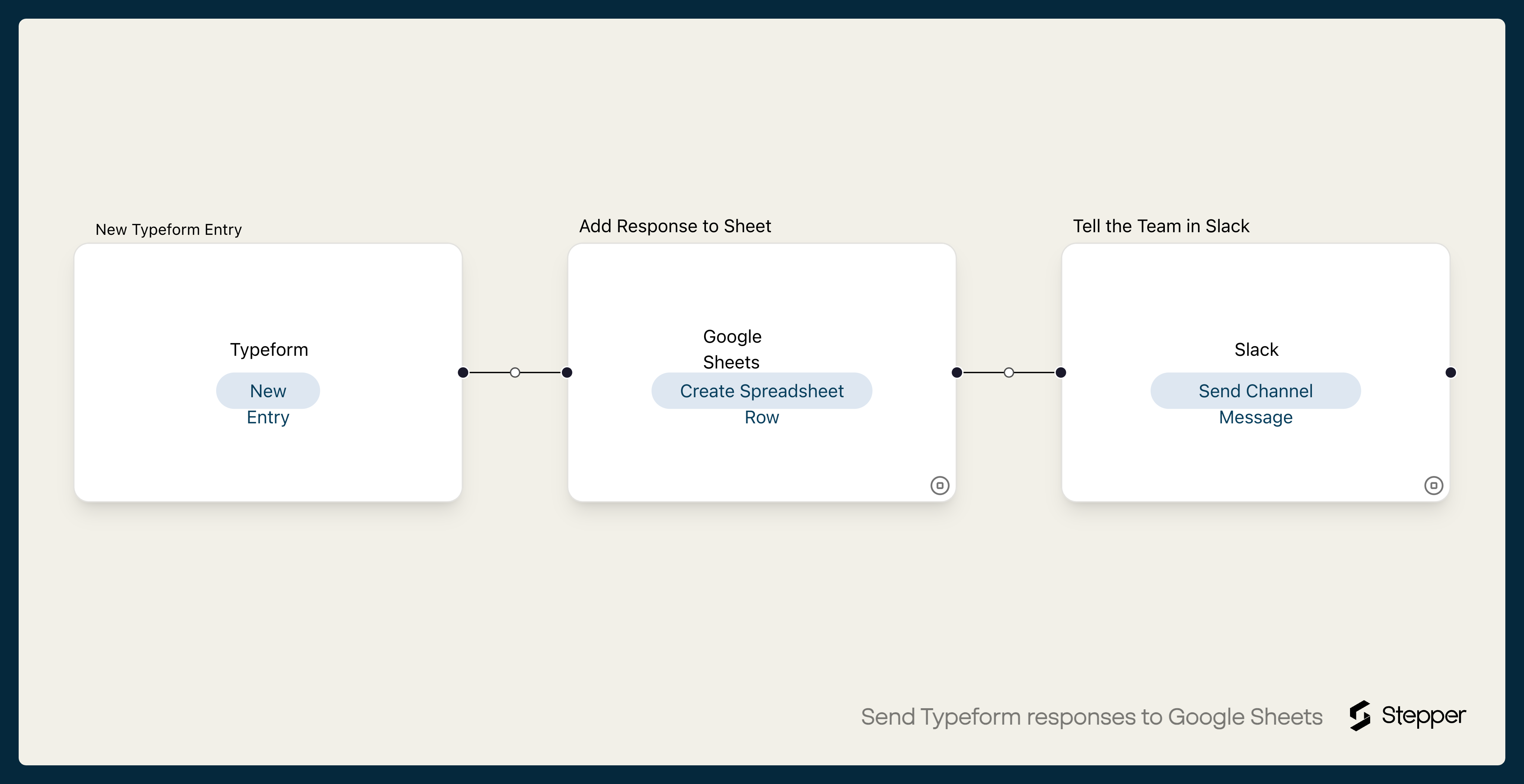
This workflow starts with two of those. For each new Typeform response it adds a row to your Google Sheet, then posts a message to a Slack channel so someone picks it up. Add more steps after those two as your process grows.
The template is set up for a contact form with questions titled Name, Email, Company and Message. Each row gets the submitted time and those four answers, and the Slack message names the person and their email. If your questions are titled differently, you re-pick the answers with the data picker.
The steps
-
Typeform: New Entry
Starts the workflow when someone submits the typeform you choose.
-
Google Sheets: Create Spreadsheet Row
Adds a row with the submitted time and the Name, Email, Company and Message answers, in columns A to E.
-
Slack: Send Channel Message
Posts a message from the Stepper Bot saying a new response from that person's name and email was added to the sheet.
What you need connected
You also need a Stepper account. Each app's page lists every trigger and action Stepper has for it.
How to set it up
- Sign in to Stepper, or create a free account.
- Set up a Google Sheet with these headers in the first row, in this order, starting at column A:
Submitted,Name,Email,Company,Message. Stepper fills columns by position, so the order matters. - Click Use this template in Stepper. Stepper copies the workflow into your account and asks you to connect Typeform, Google Sheets and Slack if you haven’t already.
- In the Typeform trigger, choose your form. Stepper can show your typeform’s questions only once your account is connected.
- In the Google Sheets step, choose the spreadsheet and worksheet. The five columns are already mapped to the submitted time and the answers to questions titled Name, Email, Company and Message. If your questions are titled differently, click into each column and pick the matching answer from the Typeform step with the data picker.
- In the Slack step, choose the channel. The message uses the Name and Email answers. Add any others people need to act on, using the data picker.
- Submit a test response and run a test. Check the new row and the Slack message, then click Publish.
What you can change
- Which responses get a Slack message. Put a condition on the rule before the Slack step, such as a score above 8 or a particular answer to “What do you need help with?”
- The second destination. Swap Slack for HubSpot, Notion or email, or keep Slack and add another step.
- What lands in the sheet. Add an AI step before the sheet to summarize a long free-text answer into one line.