Log every Stripe charge in Google Sheets
Add every new Stripe charge to a Google Sheets row with the amount, currency, customer and receipt link, for a running payment log your team can filter.
Last checked
What it does
You can export payments from the Stripe Dashboard as a CSV whenever you need them. For a daily sales tally, a shared revenue tracker or a commission sheet, a sheet that fills itself in as charges happen saves the export and the copy-paste.
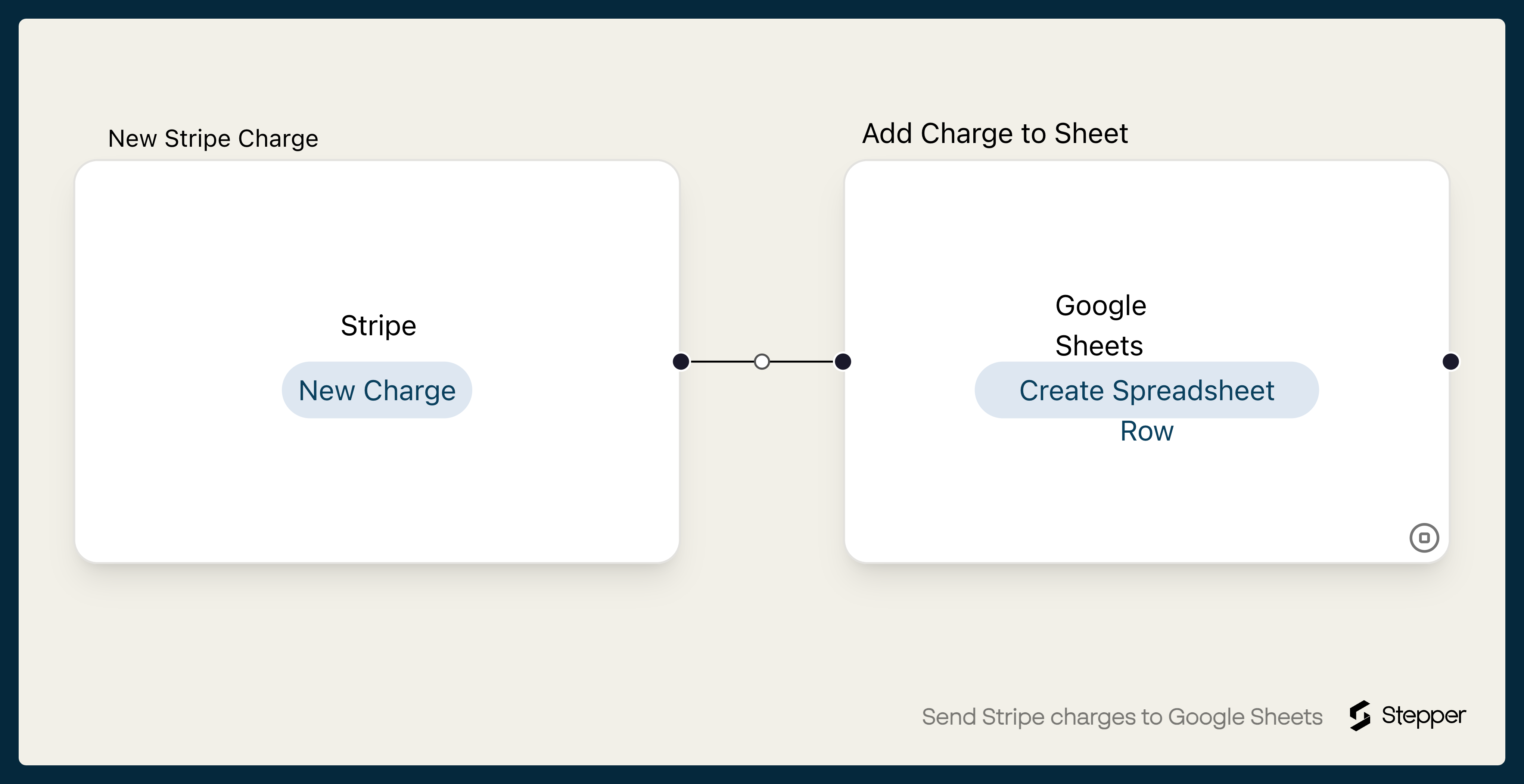
This workflow adds a row to your Google Sheet for every new Stripe charge, with the time it was created (as a Unix timestamp), the charge ID, the amount, the currency, the customer's name and email, the description and a link to the receipt.
The steps
-
Stripe: New Charge
Starts the workflow when a new charge is created in your Stripe account.
-
Google Sheets: Create Spreadsheet Row
Adds a row with the created time as a Unix timestamp, the charge ID, amount in the smallest currency unit, currency, customer name and email, description and receipt link.
What you need connected
You also need a Stepper account. Each app's page lists every trigger and action Stepper has for it.
How to set it up
- Sign in to Stepper, or create a free account.
- Create a Google Sheet with these headers in the first row:
Created,Charge ID,Amount (cents),Currency,Customer name,Customer email,Description,Receipt. - Click Use this template in Stepper. Stepper copies the workflow into your account and asks you to connect Stripe and Google Sheets if you haven’t already.
- In the Google Sheets step, choose your spreadsheet and worksheet. The columns are already mapped.
- Make a small real charge (you can refund it afterwards) and run a test. Check the row, then click Publish.
What you can change
- Amounts. Stripe records amounts in the smallest currency unit, so a 25.00 USD charge arrives as 2500. Add a formula column that divides by 100. Zero-decimal currencies such as JPY already arrive as whole amounts, so leave those as they are.
- Dates. Stripe sends the created time as a Unix timestamp in seconds, such as 1763251200. To show it as a date, add a column with
=A2/86400+DATE(1970,1,1)and format it as a date (the result is in UTC). - Which charges get a row. Put a condition on the rule before the Sheets step, such as a particular description or amount, so only those charges are logged.
- More detail. Use Stripe’s Find Customer action to add other customer details to the row.