PDF to Google Sheets: turn emailed PDFs into spreadsheet rows
Get data from emailed PDFs into Google Sheets. This Stepper template reads the first attachment on each new email with AI OCR and adds the details as a row.
Last checked
What it does
Google Sheets can't open a PDF. Getting an invoice total or an order number out of one and into a spreadsheet usually means copying it by hand, or running each file through a converter.
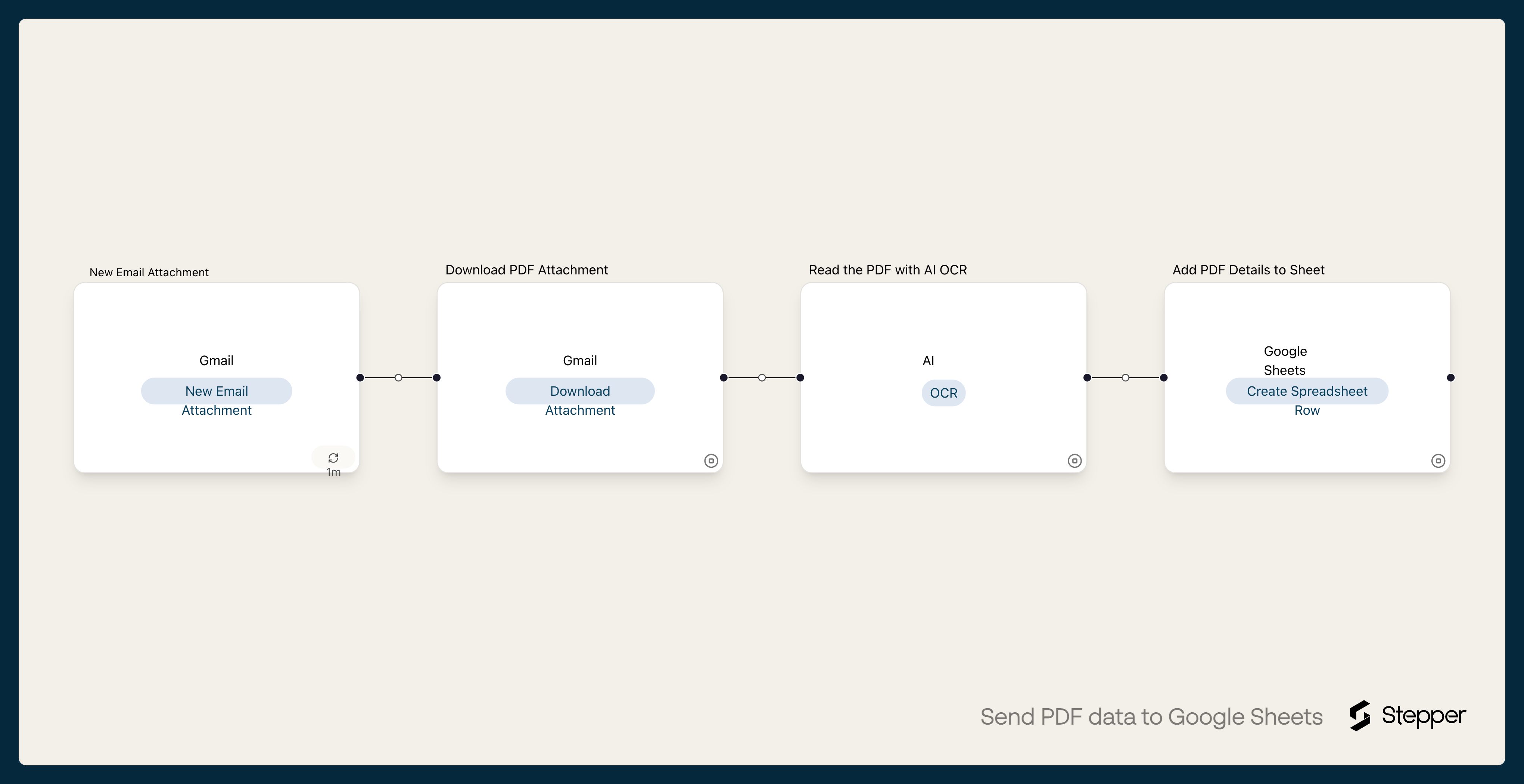
This workflow handles PDFs that arrive by email. When a message with an attachment lands in the Gmail label you choose, Stepper downloads the first attachment, reads it with AI OCR and adds a row to your sheet with the document type, who sent it, its date, the reference number, the total, the currency and a one-line summary.
It works best for PDFs that keep arriving and look roughly alike: supplier invoices, receipts, quotes, statements, purchase orders.
The steps
-
Gmail: New Email Attachment
Starts the workflow when an email with an attachment arrives in the Gmail label or mailbox you choose.
-
Gmail: Download Attachment
Downloads the first attachment, so the OCR step can read the file and the sheet can record its file name.
-
AI: OCR
Reads the PDF and returns the document type, sender, document date, reference, total, currency and a one-line summary as structured data.
-
Google Sheets: Create Spreadsheet Row
Adds a row with the date the email arrived, the file name and the details from the PDF.
What you need connected
You also need a Stepper account. Each app's page lists every trigger and action Stepper has for it.
How to set it up
- Sign in to Stepper, or create a free account.
- Click Use this template in Stepper on this page. Stepper copies the workflow into your account and asks you to connect Gmail and Google Sheets if you haven’t already.
- Create a Google Sheet with these headers in the first row, in this order, starting at column A:
Received,File name,Document type,Sender,Date,Reference,Total,Currency,Summary. - In the Gmail trigger, choose the label the PDFs arrive in. A Gmail filter that labels these emails (
Invoices, for example) keeps other attachments out of your sheet. - In the Google Sheets step, choose your spreadsheet and worksheet. The columns are already mapped:
Receivedis the time the email arrived,File namecomes from the downloaded attachment, and the rest come from the OCR fields. - Email yourself a sample PDF in that label and run a test. When the row looks right, click Publish.
What you can change
- The fields. To pull out something else (a due date, a tax amount), add the field to the OCR step’s instructions and to its structured output, add a column for it in the sheet, then map it in the Sheets step.
- Which emails count. The workflow reads only the first attachment on each email, and the rule after the trigger only continues when that file’s name ends in
.pdf(lower case). A label that catches emails with a single PDF works best. To accept.PDFtoo, add an OR condition for it on the same rule. - What happens next. Add a step after the sheet, for example a Slack message when the total is over a set amount, using a condition on the rule between the steps.