Save signed Papersign documents to Google Drive and Notion
When a Papersign document is signed, save the signed PDF to a Google Drive folder and log it in a Notion database. Import this Stepper template and test it.
Last checked
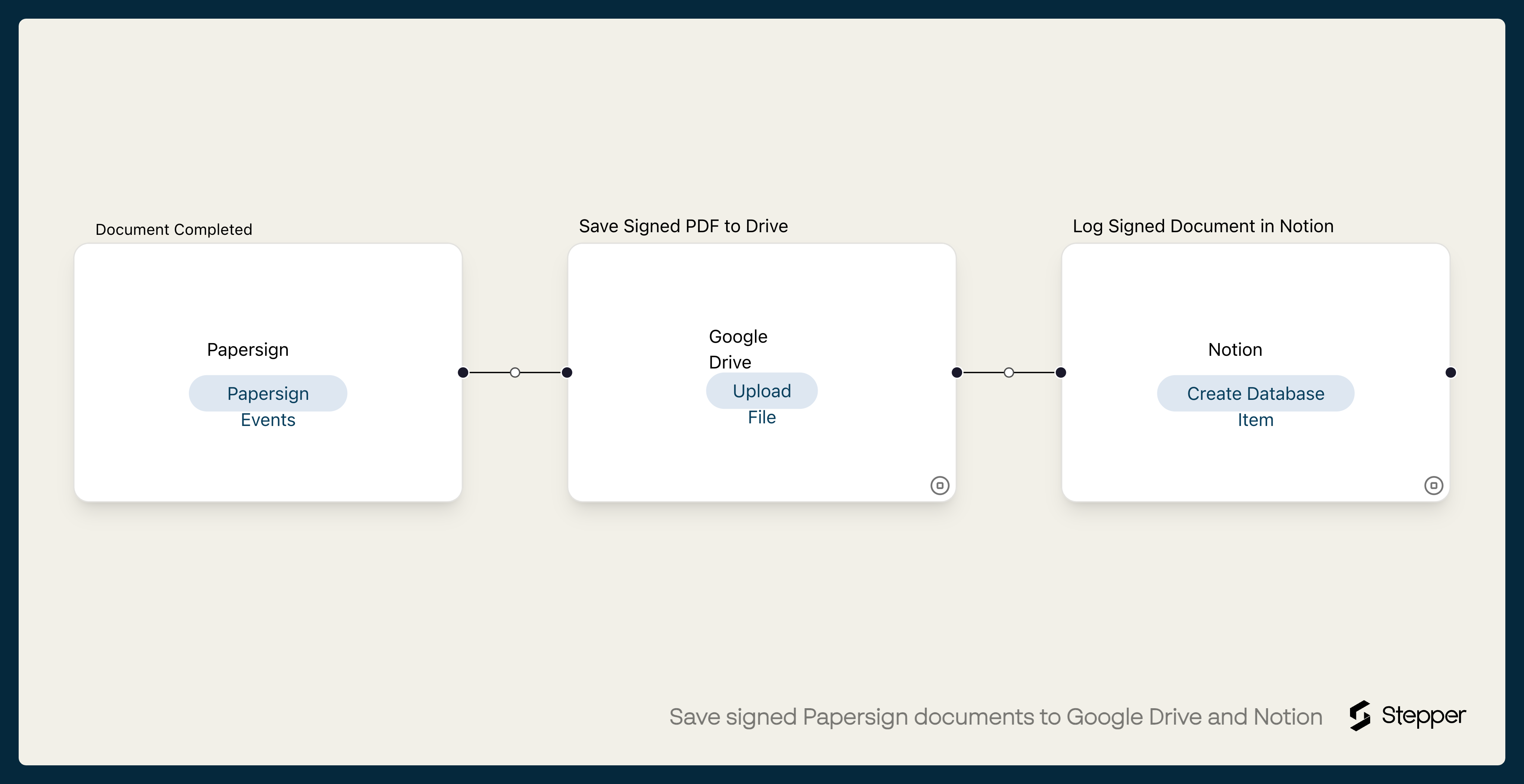
What it does
Signed contracts, agreements and consent forms need to be kept where the rest of the team can find them. Someone usually wants a list as well: who signed what, and when.
This workflow runs when a document in your chosen Papersign folder is completed. It saves the signed PDF to the Google Drive folder you choose as the document name followed by "(signed)", then adds an item to a Notion database with the document's name, a Signed date from the Papersign event and a link to the file in Drive.
The steps
-
Papersign: Document Completed
Starts the workflow when a document in the Papersign folder you choose has been signed by everyone.
-
Google Drive: Upload File
Saves the signed PDF to your chosen Google Drive folder, named after the document.
-
Notion: Create Database Item
Adds an item to your Notion database with the document name, a Signed date from the Papersign event and a link to the file in Drive.
What you need connected
You also need a Stepper account. Each app's page lists every trigger and action Stepper has for it.
How to set it up
- Sign in to Stepper with your Paperform account. Every Paperform plan includes unlimited workflows, within fair use.
- Set up a Notion database with these properties:
Name(the title),Signed(date) andDrive link(URL). - Click Use this template in Stepper. Stepper copies the workflow into your account and asks you to connect Papersign, Google Drive and Notion if you haven’t already. When Notion asks which pages Stepper can access, include the page that holds your database.
- In the Papersign trigger, choose the folder to watch.
- In the Google Drive step, choose the folder the signed PDFs should go to.
- In the Notion step, choose your database.
- Send a test document from that Papersign folder, sign it, and run a test. Check the file name in Drive and the item in Notion, including that the
Signeddate is the day it was signed, then click Publish.
What you can change
- Folders by document type. Use one workflow per Papersign folder, each saving to its own Drive folder.
- Who’s told. Add a Slack or Gmail step after Notion to let the account owner know the document is signed.
- The file name. Add the signed date to the start of the name so files sort in order in Drive.