Send Paperform submissions to Google Sheets and Slack
Send each Paperform submission to a Google Sheets row and a Slack channel in one workflow. Import the template, then choose your form, sheet and channel.
Last checked
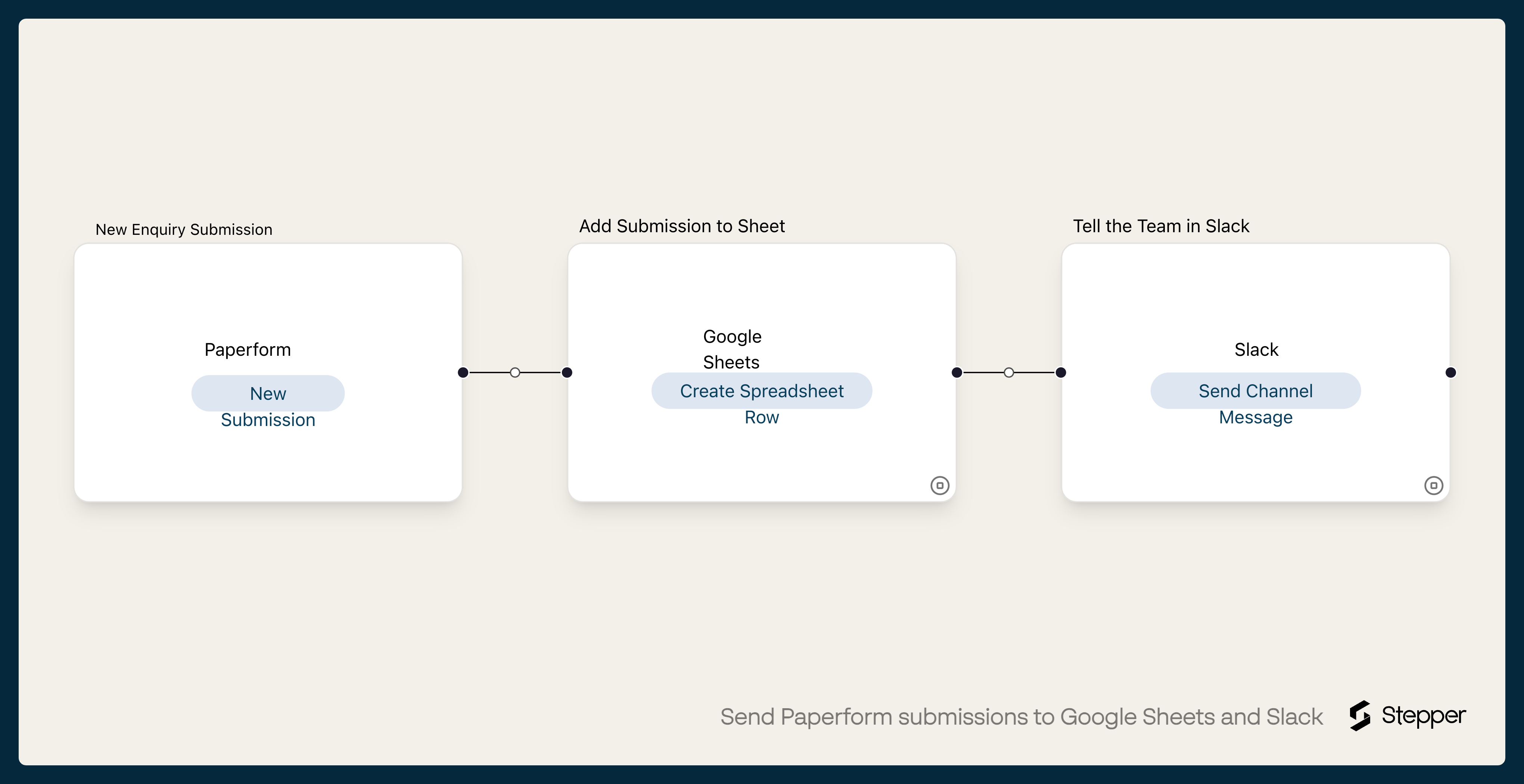
What it does
Two things happen to most submissions: they get recorded somewhere the team can sort and filter, and someone gets told there's a new one.
For each new submission to the form you choose, this workflow adds a row to your Google Sheet with the submitted time, first and last name, email, company and message. Then it posts the name, email and message to a Slack channel, so whoever picks it up can reply without opening the sheet.
The steps
-
Paperform: New Submission
Starts the workflow when the Paperform form you choose gets a new submission.
-
Google Sheets: Create Spreadsheet Row
Adds a row with the submitted time, first name, last name, email, company and message.
-
Slack: Send Channel Message
Posts the person's name, email and message to the Slack channel you choose, from the Stepper Bot.
What you need connected
You also need a Stepper account. Each app's page lists every trigger and action Stepper has for it.
How to set it up
- Sign in to Stepper with your Paperform account. Every Paperform plan includes unlimited workflows, within fair use.
- Create a Google Sheet with these headers in the first row:
Submitted,First name,Last name,Email,Company,Message. - Click Use this template in Stepper. Stepper copies the workflow into your account and asks you to connect Paperform, Google Sheets and Slack if you haven’t already.
- In the Paperform trigger, choose your form. The template uses questions with the keys
firstName,lastName,email,companyandmessage. If your form’s questions have other keys, pick your own answers in the Sheets and Slack steps with the data picker. - In the Google Sheets step, choose your spreadsheet and worksheet.
- In the Slack step, choose the channel.
- Submit your form once and run a test. Check the row and the Slack message, then click Publish.
What you can change
- Which submissions reach Slack. Put a condition on the rule before the Slack step, such as orders over a set total or a particular answer.
- Who gets it. Use Slack’s Send Direct Message action to send it to one person.
- Another step. Add the respondent to HubSpot, or create a Notion item, after the Sheets step.