Add Paperform bookings to Google Calendar
Create a Google Calendar event for each Paperform booking, with the time and the client's answers. Import the Stepper template and map your fields.
Last checked
What it does
If people request a call through a Paperform form by picking a date and a time, each request has to end up in a calendar.
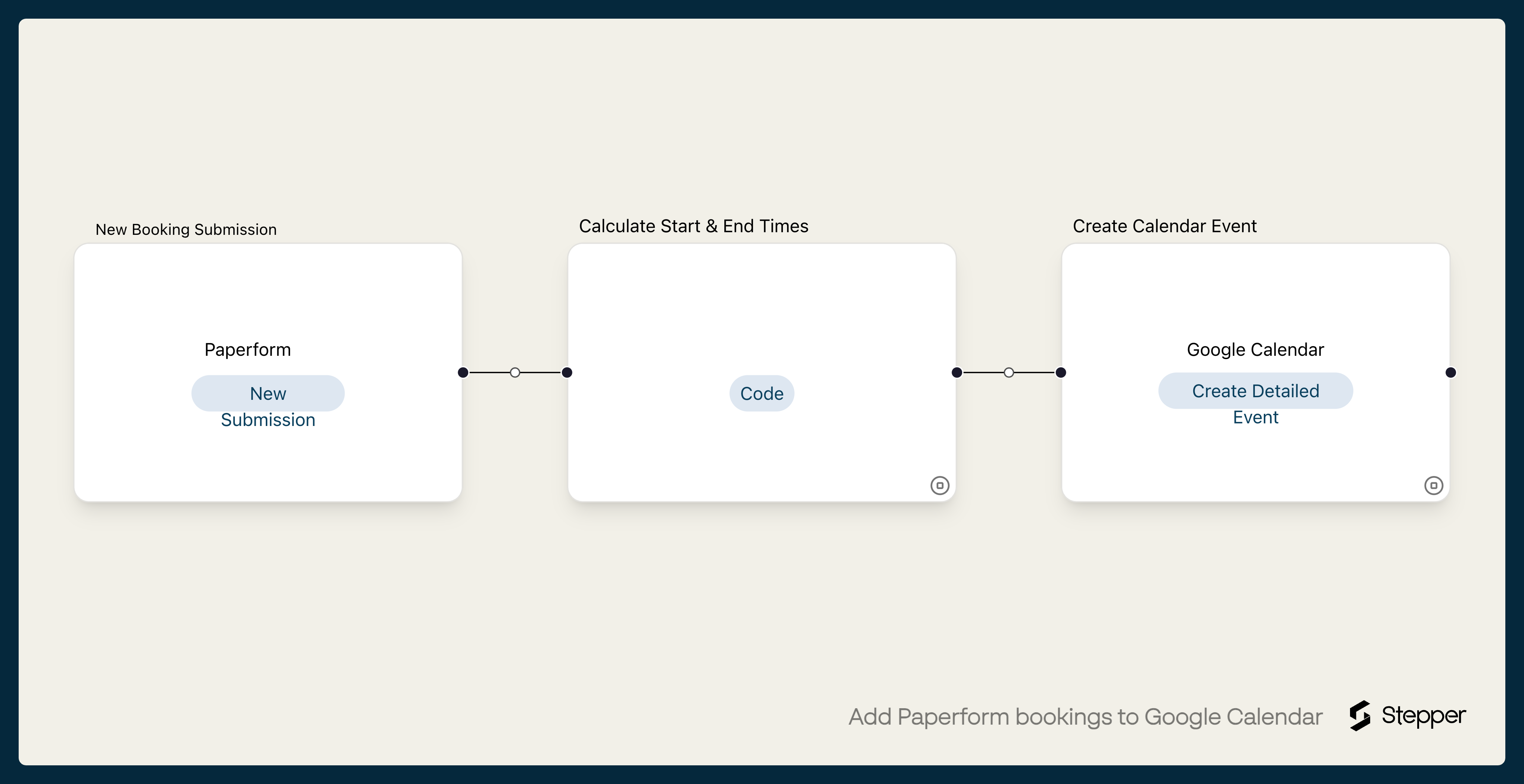
This workflow creates a Google Calendar event for each new submission. A short code step combines the preferred date and preferred time from the form into a start time and sets the end 30 minutes later. The event is named "Call with" followed by the person's name and company, and the description holds their email and message.
The steps
-
Paperform: New Submission
Starts the workflow when the Paperform form you choose gets a new submission.
-
Stepper: Code
Combines the preferred date and preferred time into a start time in UTC, and sets the end time 30 minutes later.
-
Google Calendar: Create Detailed Event
Creates an event named "Call with" plus the person's name and company, with their email and message in the description.
What you need connected
You also need a Stepper account. Each app's page lists every trigger and action Stepper has for it.
How to set it up
- Sign in to Stepper with your Paperform account. Every Paperform plan includes unlimited workflows, within fair use.
- Click Use this template in Stepper. Stepper copies the workflow into your account and asks you to connect Paperform and Google Calendar if you haven’t already.
- In the Paperform trigger, choose your form. The template uses questions with the keys
preferredDate,preferredTime,firstName,lastName,company,emailandmessage. If yours have other keys, pick your own answers with the data picker in the code step and the Calendar step. - In the Google Calendar step, choose the calendar.
- Submit a test booking and run a test. Check the event’s date and time in Google Calendar, then click Publish.
What you can change
- Time zone. The code step treats the time someone picks as UTC, so a 2:00 pm request becomes a 2:00 pm UTC event. If your form’s times are local, adjust the code before you publish: subtract your time zone’s offset from
start, or build the time with your offset instead ofDate.UTC. Then check the test event lands at the right time. - Length. The end time is 30 minutes after the start. Change the
30in the code step for longer or shorter sessions. - Attendees and reminders. The event has no attendees. Map the person’s email into Attendees if you want them on the event, and set reminders if you want a nudge beforehand.
- A confirmation. Add a Gmail step that emails the person their booking details.