Turn Google Forms responses into Trello cards
Turn each new Google Forms response into a Trello card on the board and list you choose, with answers in the card name and description. Import and test it.
Last checked
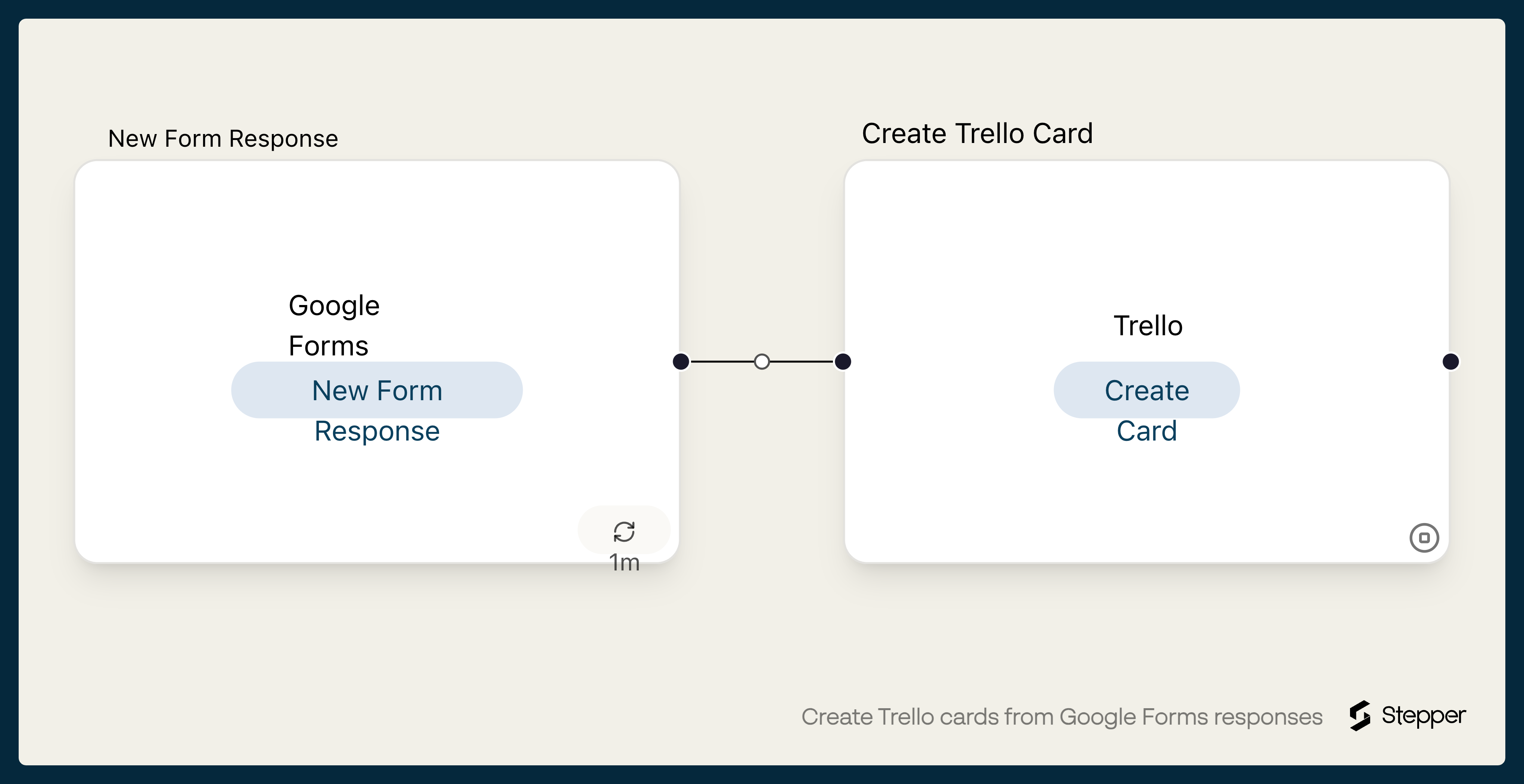
What it does
A Google Form is a common way to take requests: client inquiries, IT help, design briefs, event requests. The work itself is tracked in Trello, so someone ends up copying each response across as a card.
This workflow creates a Trello card for each new response. The card is named after the person and their company, and the description holds their email, company, message and the time they submitted. New cards go to the board and list you pick, ready to be assigned and moved along.
The template expects a form with Name, Email, Company and Message questions. If yours asks different questions, you pick your own answers for the card when you set it up.
The steps
-
Google Forms: New Form Response
Starts the workflow when the form you choose gets a new response.
-
Trello: Create Card
Creates a card in the board and list you choose, named after the respondent and their company, with their email, company, message and submitted time in the description.
What you need connected
You also need a Stepper account. Each app's page lists every trigger and action Stepper has for it.
How to set it up
- Sign in to Stepper, or create a free account.
- Click Use this template in Stepper. Stepper copies the workflow into your account and asks you to connect Google Forms and Trello if you haven’t already. Connect the Google account that owns the form.
- In the Google Forms trigger, choose your form.
- In the Trello step, choose the board, then the list new cards should go to.
- Check the card name and description. If your form’s questions aren’t named Name, Email, Company and Message, replace those answers with your own using the data picker.
- Submit a test response and run a test. Stepper checks Google Forms for new responses on a schedule, so the card may take a few minutes to appear.
- When the card looks right, click Publish.
What you can change
- Where cards go. Add a second Create Card step that points at a different list, and put a condition on each rule so responses with a different “Department” answer end up in different lists.
- Labels. Add Trello’s Add Label to Card action to tag cards by request type.
- Who hears about it. Add a Slack or email step after the card is created.