Send Gmail emails to Google Sheets, one row per email
Send emails from Gmail to Google Sheets. This Stepper template finds emails that match your search, pulls out the sender and request with AI, and adds a row.
Last checked
What it does
Orders, invoices and inquiries arrive by email, and the details someone wants in a spreadsheet are in the body of the message. Copying them across by hand takes time, and sooner or later one gets missed.
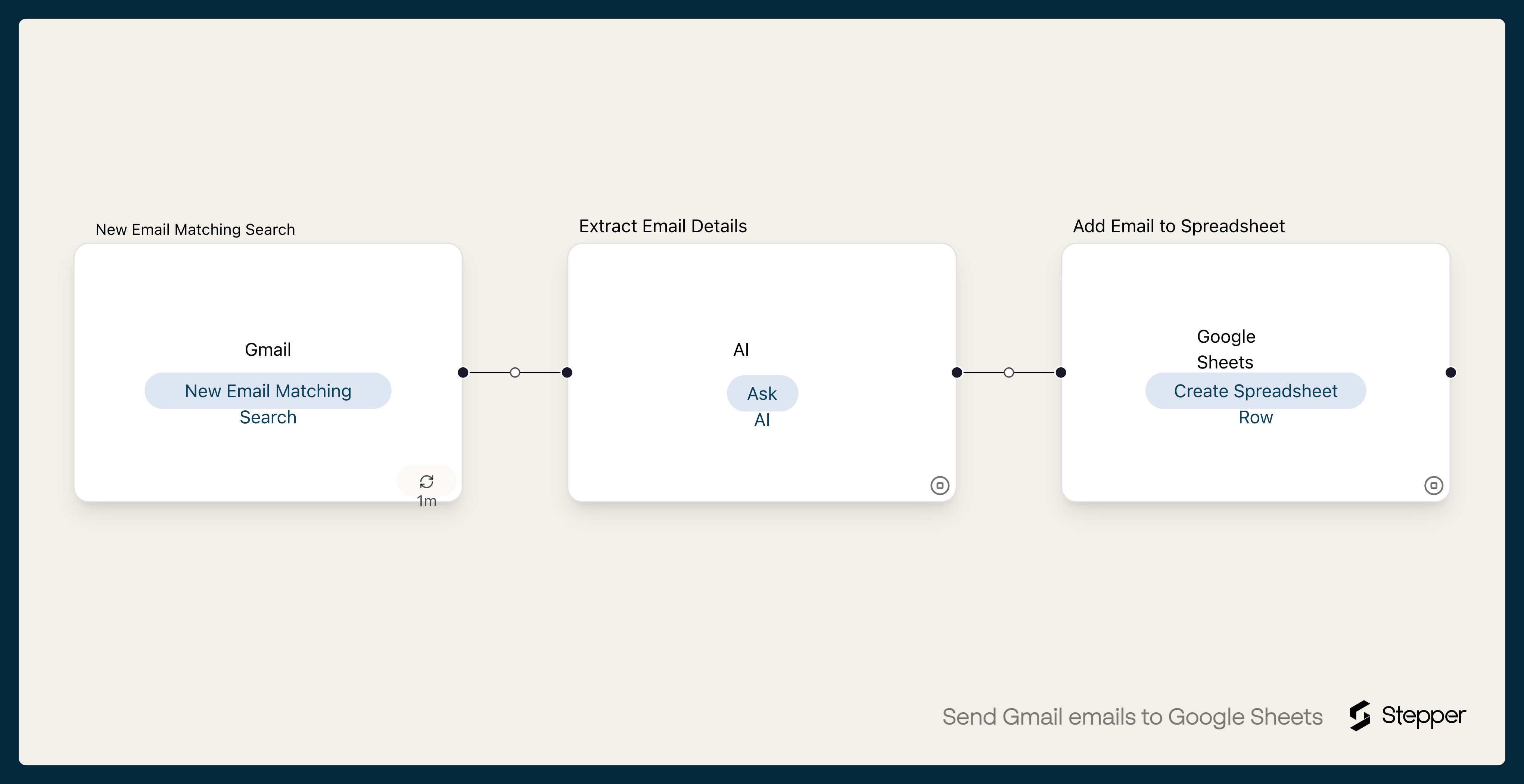
This workflow watches Gmail for emails that match a search. It starts with subject:(order OR invoice OR enquiry), and you can change it to anything Gmail's search accepts. For each match, an AI step reads the email and works out the sender's name, email address and company, what kind of request it is and a one-line summary. Google Sheets gets a new row with those, plus the date received and the subject.
Because the AI reads the email rather than looking for fixed positions, it can handle emails whose layout varies, as long as the details are in there.
The steps
-
Gmail: New Email Matching Search
Starts the workflow when a new email matches the Gmail search you set.
-
AI: Ask AI
Reads the sender, subject, date and body, and returns the sender's name, email address and company, the request type and a one-line summary as structured data.
-
Google Sheets: Create Spreadsheet Row
Adds a row with the date received, the sender's details, the request type, the summary and the subject.
What you need connected
You also need a Stepper account. Each app's page lists every trigger and action Stepper has for it.
How to set it up
- Sign in to Stepper, or create a free account.
- Create a Google Sheet with these headers in the first row:
Received,From name,From email,Company,Type,Summary,Subject. - Click Use this template in Stepper. Stepper copies the workflow into your account and asks you to connect Gmail and Google Sheets if you haven’t already.
- In Gmail, try your search in the search bar first and check it only finds the emails you want. Then enter the same search in the Gmail trigger.
- In the Google Sheets step, choose your spreadsheet and worksheet. The columns are already mapped.
- Send yourself an email that matches the search and run a test. Check the row against the email, then click Publish.
What you can change
- Which emails count. Gmail search operators like
from:,subject:,has:attachmentandlabel:narrow it down. - The fields. Edit the AI step’s instructions and structured output to ask for anything that’s in the email, such as an order number or delivery date, then add a column for it.
- What else happens. Add a step that labels or archives the email in Gmail once it’s in the sheet, so you can see which ones are done.